
Sep 18, 2025
David Luis

Lorem Ipsum has been the industrys standard dummy text ever since the 1500 Lorem Ipsum has been the industrys

More Details
Sep 18, 2025
Steve Martin

Lorem Ipsum has been the industrys standard dummy text ever since the 1500 Lorem Ipsum has been the industrys

More Details
Sep 18, 2025
Mark Steven

Lorem Ipsum has been the industrys standard dummy text ever since the 1500 Lorem Ipsum has been the industrys
More Details
Sep 5, 2025
Mobile Repairing: Keeping Your Devices Alive and Running

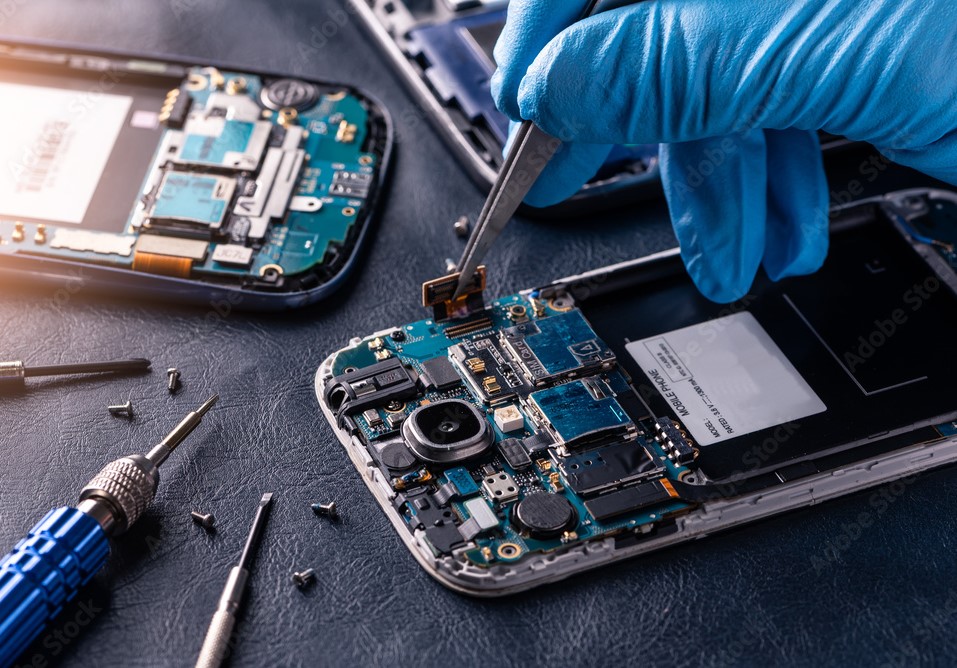
Mobile Repairing: In today’s fast-paced world, our mobile phones are more than just gadgets — they are lifelines. From staying connected with loved ones to running businesses, capturing memories, and managing finances, smartphones have become an essential part of daily life. But what happens when your phone suddenly stops working or develops a fault? This is where mobile repairing services step in, ensuring your device gets a second life.
Why Mobile Repairing is Essential

No matter how advanced smartphones become, they are still prone to damage. Common issues like cracked screens, battery drain, charging port malfunctions, water damage, or software glitches can disrupt your day. Rather than replacing an expensive phone, mobile repair offers an affordable and eco-friendly solution. Repairing not only saves money but also reduces electronic waste, making it a smarter choice for the planet.

Expert Care for Your Device

Professional mobile repair technicians are trained to handle a wide range of issues. Whether it’s replacing a damaged screen, repairing a faulty motherboard, fixing speakers, or optimizing software, skilled technicians use specialized tools and genuine parts to ensure your phone runs like new. Many repair centers even provide quick, same-day service, so you don’t have to be without your phone for long.

Benefits of Professional Mobile Repair

  • Cost-Effective: Repairing your phone is often far cheaper than purchasing a new one.
  • Time-Saving: Get your phone fixed in hours, not days.
  • Sustainable: Extending your phone’s life reduces e-waste.
  • Data Protection: Professionals ensure your data stays safe while repairing your device.
  • Expert Advice: Technicians can guide you on how to avoid future damage.

Choosing the Right Mobile Repair Service

When selecting a mobile repair shop or service center, look for:

  • Experience and Reviews: Check online reviews and ratings for reliability.
  • Warranty on Repairs: A trusted repair shop offers warranties for peace of mind.
  • Transparent Pricing: Avoid hidden charges by choosing services with upfront pricing.
  • Use of Genuine Parts: Quality parts ensure long-lasting repairs.

DIY vs. Professional Repair: What’s Better?

While DIY tutorials on YouTube might seem tempting, mobile phones are delicate devices. A single mistake could cause further damage, leading to higher repair costs. That’s why it’s best to trust professional repair experts who have the right tools and experience.

Final Thoughts

Mobile repairing is more than just fixing a broken device — it’s about restoring connectivity, convenience, and peace of mind. With skilled technicians, quality service, and proper care, your smartphone can serve you for years. So, the next time your phone has a problem, don’t panic or rush to buy a new one — consider professional mobile repairing as your go-to solution.

More Details
Sep 4, 2025
How to Save Battery Life for Your Laptop – Simple Tips for Longer Use

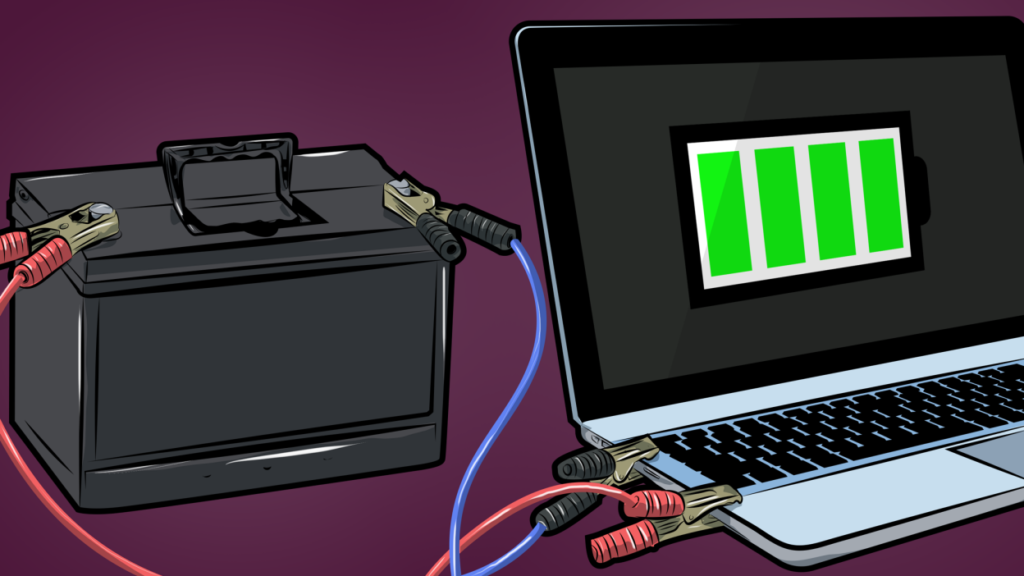
Laptops have become a part of our daily life, whether you’re working from home, studying online, gaming, or watching your favorite shows. But nothing is more frustrating than a laptop battery that drains too quickly. Constantly searching for a power outlet or carrying your charger everywhere can be inconvenient. The good news is that you can save battery life for your laptop’s with a few smart habits and simple adjustments.

In this blog, we’ll share practical, easy-to-follow tips to help you get the most out of your laptop battery and keep it running efficiently for years.


1. Adjust Your Display Brightness

Your laptop screen is one of the biggest battery consumers. Lowering the brightness you can save battery life for your laptop . Most laptops allow you to manually adjust brightness or enable auto-brightness to adapt to your surroundings. Keeping your screen brightness at around 50% is usually enough for comfortable use.


2. Enable Battery Saver or Power-Saving Mode

Almost all modern laptops come with a battery saver mode that optimizes performance to extend battery life. When enabled, it automatically reduces screen brightness, limits background activity, and adjusts hardware performance. This is especially useful when you’re traveling or working without access to a charger.


3. Close Unnecessary Apps and Background Processes

Save Battery Life for Your Laptop – Many apps and software run in the background, even when you’re not using them. These programs can drain your battery and slow down performance. Use your Task Manager (Windows) or Activity Monitor (Mac) to close unnecessary processes and free up resources.

4. Disconnect External Devices

External devices like USB drives, external hard disks, webcams, or even a wireless mouse receiver consume additional power. When you’re not using them, disconnect these devices to save energy. Similarly, turn off Bluetooth and Wi-Fi when they’re not needed.

5. Keep Your Laptop Coo

Heat is one of the biggest enemies of battery health. Overheating can cause your laptop’s battery to degrade faster. Always use your laptop on a hard, flat surface instead of a bed or couch to allow proper ventilation. Cleaning the laptop vents regularly or using a cooling pad also helps maintain optimal temperature.

6. Update Your System and Drivers

Keeping your laptop’s operating system and drivers updated ensures it runs efficiently. Updates often come with power management improvements, better hardware control, and bug fixes that can reduce battery drain.


7. Avoid Overcharging Your Battery

Leaving your laptop plugged in all the time can shorten battery life over time. Most laptops today are designed to stop charging when they reach 100%, but it’s still a good habit to unplug your device once it’s fully charged.


8. Optimize Startup Programs

Too many apps set to run at startup can slow your system and drain your battery right from the beginning. Disable unnecessary startup programs to reduce power consumption and improve boot speed.


9. Switch to Battery-Friendly Settings

Simple changes like lowering keyboard backlight brightness, switching to airplane mode when offline, or choosing a darker theme can also save power. If you’re using a browser, open fewer tabs or use a lightweight browser to minimize battery use.


10. Take Care of Save Battery Life for Your Laptop

Laptop batteries don’t last forever, but with proper care, you can extend their lifespan. Avoid draining your battery completely too often, and try to keep your charge between 20% and 80% for long-term health.


Final Thoughts

Save Battery Life for Your Laptop doesn’t require expensive tools or complicated steps. By following these simple tips, you can maximize your laptop’s battery performance, reduce the need to carry a charger everywhere, and improve your overall experience. Small changes, like lowering screen brightness, closing unused apps, and keeping your laptop cool, can make a big difference over time.

A well-maintained battery not only makes your laptop more reliable but also saves you money in the long run. Start applying these tips today and enjoy without thinking how to Save Battery Life for Your Laptop.

FAQ

Q1. How can I make my laptop battery last longer?

To make your laptop battery last longer, reduce screen brightness, close unnecessary apps, turn off Bluetooth and Wi-Fi when not needed, and enable battery saver mode. Regularly updating software also helps optimize battery performance.


Q2. Does keeping my laptop plugged in all the time damage the battery?

Modern laptops use smart charging technology to prevent overcharging, but keeping it plugged in all the time may slightly reduce battery lifespan over time. It’s better to unplug occasionally and keep your battery between 20–80% for optimal health.


Q3. How often should I charge my laptop battery?

Charge your laptop battery when it drops below 20% and unplug it when it reaches 80–90%. This charging cycle helps maintain battery health and extends its overall lifespan.


Q4. Can adjusting display settings save battery life?

Yes! Lowering brightness, reducing screen timeout, and using dark mode can save significant battery power. High screen brightness is one of the top battery drainers.


Q5. Should I use Battery Saver Mode on my laptop?

Yes, Battery Saver Mode is designed to extend your laptop’s battery life by limiting background activity and reducing system performance slightly to conserve energy.


Q6. Is it okay to use my laptop while charging?

Yes, you can use your laptop while charging. Modern batteries are designed to handle it. However, try to avoid heavy gaming or resource-intensive tasks during charging as it generates heat that can impact battery health.


Q7. How do I check which apps drain my laptop battery?

You can check battery usage in Windows Settings > System > Power & Battery or macOS Battery Settings. Closing battery-draining apps and processes will help extend your laptop’s battery life.


Q8. Does keeping my laptop cool help save battery life?

Absolutely! Overheating reduces battery efficiency. Use your laptop on hard surfaces, keep air vents clear, and consider using a cooling pad to prevent overheating.

More Details